
Items, Outfits, and Catalogs explained
How the three building blocks of your Library fit together — and the workflow that makes every future shoot take seconds.
Updated June 12, 2026
Your Library is where every garment you upload lives — and once you have a handful in there, it becomes the fastest way to spin up new product shoots without re-uploading anything. This post walks through the three building blocks and shows how to use them together.
The three building blocks
| What it is | Best for | |
|---|---|---|
| Items | A single garment (top, bottom, footwear, or outerwear) with one or two photos and an optional name, fit notes, and reference images | Building your master wardrobe |
| Outfits | A pre-built combination of one top, one bottom, and one footwear pulled from your Items | Saving complete looks so a future project loads in a single click |
| Catalogs | A folder you create to group Items and Outfits together — by season, collection, client, brand line, anything | Keeping the Library tidy once you have dozens of garments in it |
The mental model: Items are your raw materials, Outfits are recipes, Catalogs are the cookbook chapters.
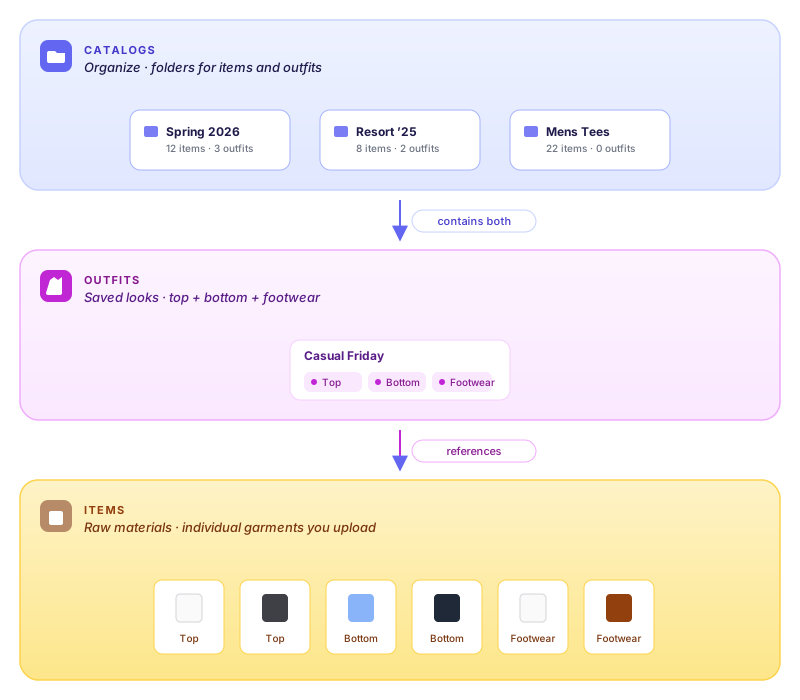
Read the diagram bottom-up: every Item you upload is a single garment. Outfits reference Items — pick one top, one bottom, one footwear and save the combination as a named look. Catalogs are pure organization on top — they group both Items and Outfits, with each Item or Outfit living in at most one Catalog at a time.
How Items get into your Library
Two ways:
- Automatically, every time you upload. Drop a garment photo in any of the upload steps inside Create and it's silently saved to your Library as a new Item. The default name is
Untitled Top/Untitled Bottom/Untitled Footwear, which you can rename anytime from the Library tab. - Manually, via the Add Items button in Library → Items. Useful for bulk-loading a whole product line at once.
Every Item can have:
- A front photo (required) and an optional back photo — uploading both lets us produce more accurate back-facing poses later.
- A name like
Linen Polo — Sandso it's easy to find. - Specifications — garment type, fit style, hem/sleeve finishing, instructions. These help the AI render the exact silhouette you want.
- Reference photos — additional shots showing how the garment should fit on a body.
You can edit any of these later from Library → Items → click an item → Edit.
When to make an Outfit
Outfits are the time-saver. If you're going to shoot the same look on five different models, build it once as an Outfit and you can load all three garments (top + bottom + footwear) into a new project with a single click.
Create one from Library → Outfits → New Outfit. Pick one top, one bottom, one footwear from your Items, give it a name, and save.
Good candidates for an Outfit:
- A "uniform" look you shoot often (e.g. Plain White Tee + Black Jeans + White Sneakers)
- A complete styled look for a specific drop (e.g. Spring '26 Lookbook 03)
- A hero combination for a category page
You're not locked in — Outfits don't own the Items, they reference them. Editing a referenced Item updates everywhere the Outfit is used.
When to make a Catalog
Catalogs are pure organization. They don't change anything about how the AI works — they just give you a folder structure so the Library doesn't become a long undifferentiated list. Each Item or Outfit can live in at most one Catalog at a time.
Create one from Library → Catalogs → New Catalog. Then drag (or use the menu) to move Items and Outfits into it.
Typical setups:
- By season:
Spring 2026,Summer 2026,Holiday 2025 - By collection or drop:
Resort 01,Capsule 02 - By brand line:
Mens — Performance,Womens — Loungewear - By client (if you run an agency):
Acme Apparel,Studio Voss
In the Create flow you can browse by Catalog too — pick a Catalog from the dropdown on the upload step and it filters the Library picker to just that group's garments.
A typical workflow
- Upload your product photos. Every flat-lay lands in Library → Items automatically. Rename them as you go so you can find them later.
- Build Outfits for the looks you'll re-use.
- Group everything into Catalogs once you have enough garments that scrolling gets old.
- In Create, use the Library / Outfits / Catalogs tabs to pull what you need into a project without re-uploading anything.
That's the whole loop. The more you put in early, the faster every future shoot gets.
Questions or feedback? Reply to any email from us or use the chat in the bottom-right of the app.
Was this article helpful?